Git workflow
dbt Charts Cloud
This page describes dbt Charts Cloud, the hosted
product — these features are not part of the open source dct
engine.
Cloud reads and writes your boards through git; the repository stays the source of truth, and every edit made in Cloud is a real git commit you can see, review, and merge. This page walks the whole lifecycle: the two branches every project has, how edits become commits, change branches and merging, review mode, and what the Git settings screen tells you.
Connecting a repository in the first place is covered in Getting started; this page assumes a project is already bound to one.
Two branches: upstream and work
Every project tracks two branches:
- The upstream branch (usually
main) is your repository's default branch, the one your team merges to. Cloud never commits to it directly. - The work branch (named
dbt-charts/<project>by default) is where Cloud's edits land. Every board save in Cloud becomes a commit on this branch, authored by the person who saved. Cloud pushes it back to your remote, so the work branch is visible in your repository like any other branch, and changes flow into the upstream branch through your normal process. On GitHub, GitLab (as a merge request) and Bitbucket, Cloud maintains a rolling pull request from the work branch automatically; it opens with the first pushed edit and keeps updating as more land, and a Create PR button on the Git settings screen brings it back if it was closed.
Syncing keeps both sides current: Cloud pulls the upstream branch, then carries the new upstream commits forward into the work branch so boards in Cloud reflect what your team merged. Cloud's own commits flow the other way with each push of the work branch.
Quickstart boards
Some Fivetran dbt packages ship starter boards for their models. Cloud doesn't
run dbt deps, so it can't read them from dbt_packages/. Instead, when a
sync finds your project pinning a supported package in packages.yml or
package-lock.yml, Cloud commits that package's boards to charts/<package>/
on the work branch, in one commit authored by Cloud, and pushes it like any
other edit. From there they are ordinary boards: edit, move, or delete them,
and your changes stick. Cloud adds a package's boards to a project once, and
never over a charts/<package>/ folder the project already has. A project in
branch mode gets none, since its work branch only advances through merges.
Supported today: fivetran/zendesk.
Pushing is not publishing
A git push puts your commit on your git host. Cloud publishes it on the
next sync, which is also what re-renders the boards the commit changed.
Those are two separate events, and how soon the second one follows the first
depends on how the project is connected:
| Connection | What syncs it automatically |
|---|---|
| GitHub (App or token), GitLab or Bitbucket | The push itself. The host sends a webhook and the sync starts within seconds. A daily reconcile picks up a delivery that never arrived. |
| Other Git host | Nothing watches the remote, so an hourly sweep is the only automatic sync. A push can wait up to an hour. |
Either way you can publish immediately, from the Git settings screen's Sync now button or from the CLI:
How to know your change is live. dct cloud boards prints, per board,
when its served render ran and the commit that render read the board from:
SLUG            STATUS  RENDERED_AT       COMMIT   URL
exec-overview   ready   2026-09-06 10:50  8a2f27c  https://dbtcharts.com/acme/analytics/d/exec-overview
Read it before your push and again after the sync. A board you edited is
serving your work once its own two values move: a later RENDERED_AT, and a
different COMMIT.
If neither has moved, the change is not confirmed yet rather than not
published. A sync queues the re-renders and they run behind live page views,
each re-running the board's queries, so this can take a few minutes on a slow
warehouse. STATUS needs its own reading, because a render that fails writes
no new complete render, so the two columns cannot move for it: they only ever
prove success. A warning that appeared since your first reading is your
answer, because the only way a board reaches it is a newer failed attempt: the
re-render ran and failed. A warning that was already there is inconclusive,
since it carries no date and may be the old failure or a new one of your own
commit, so open the board rather than dismissing it. An unchanged errored is
the previous render's chart diagnostic, because it describes the very render
RENDERED_AT names. A board still reading ready or not_rendered with
nothing moved is simply waiting on its queued re-render; look again shortly,
and run dct cloud project sync only if you are not sure the sync ever ran.
Compare only the boards your commit changed. A board it did not touch normally keeps both values, because nothing re-renders content that did not change; that is a board already serving the right bytes, not one waiting to catch up.
COMMIT names a commit in Cloud's copy of the repository, which is not always
one of yours. Cloud commits its own board edits to the work branch and merges
your upstream branch into it on every sync, so on a project that has been
edited in Cloud the served commit is a work-branch commit and will not equal
your git rev-parse HEAD. On a project only ever edited through git the two
are the same sha. The sha changing is the signal in both cases.
STATUS: ready on its own only means a render exists, not that it is a
render of your edit. A board that has never finished a render shows - in
both columns, as does one last rendered before Cloud began recording commits;
neither is backfilled with a guess, and the column fills in on the board's
next render.
The Git settings screen
Settings → Git is the home for all of this. The Status card shows when the project last synced and pushed and how far the work branch is ahead of upstream; the Connection card shows the repository, the upstream and work branch names, and the folder inside the repository the project reads (for repositories that hold more than one project). The Files panel browses exactly what Cloud sees at the work branch tip: the same files, at the same commit, that your boards render from.
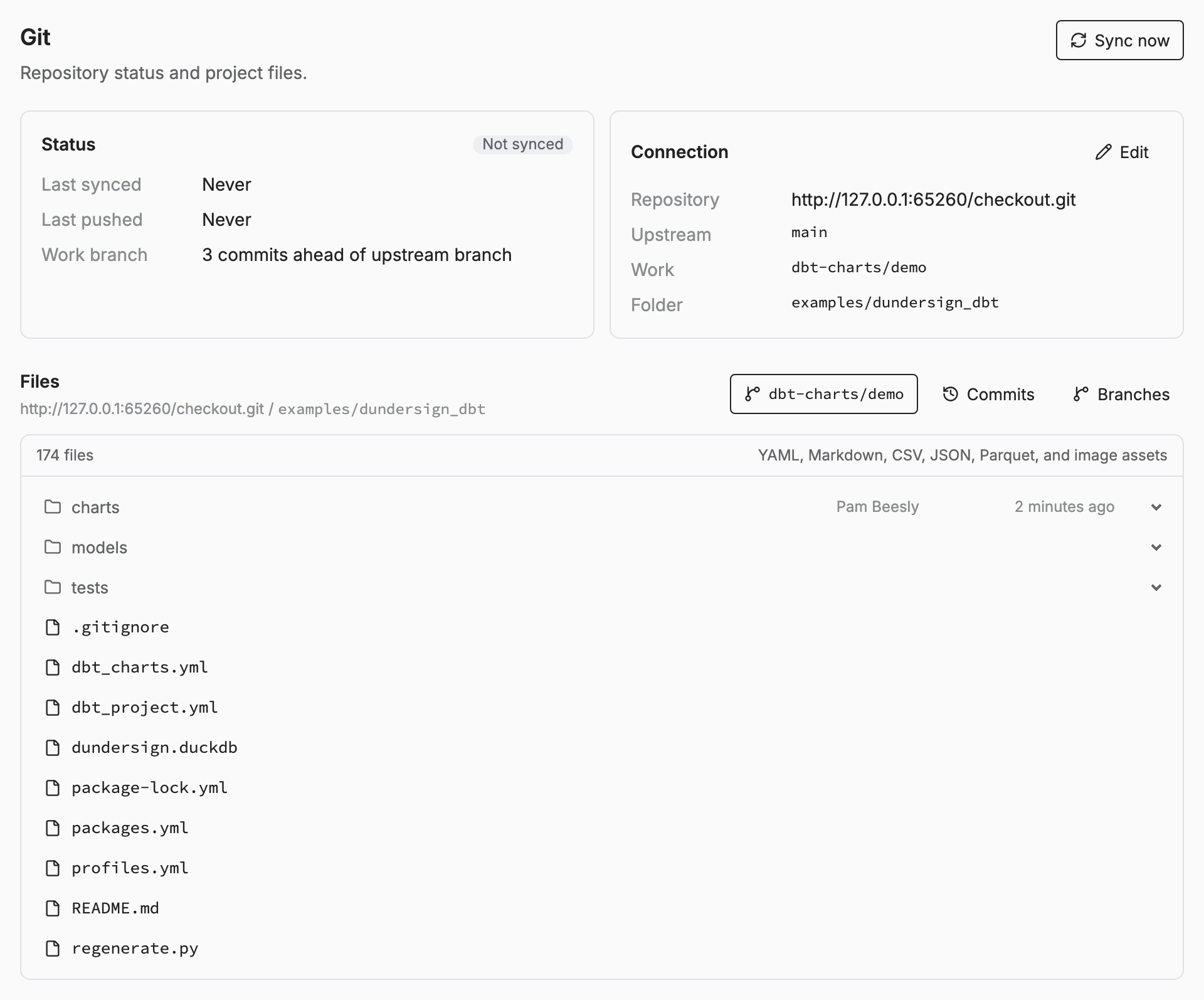
When a sync cannot complete (the histories have diverged after a force push, or Cloud's copy of the repository is missing something it needs) the status is reported here too, with the reason, instead of silently serving stale boards.
Change branches
Edits don't have to land on the work branch directly. The Branches screen (linked from the Git settings) lists every branch Cloud knows about and lets you create a change branch: a branch off the work branch where a set of edits can be developed together and merged as one unit.
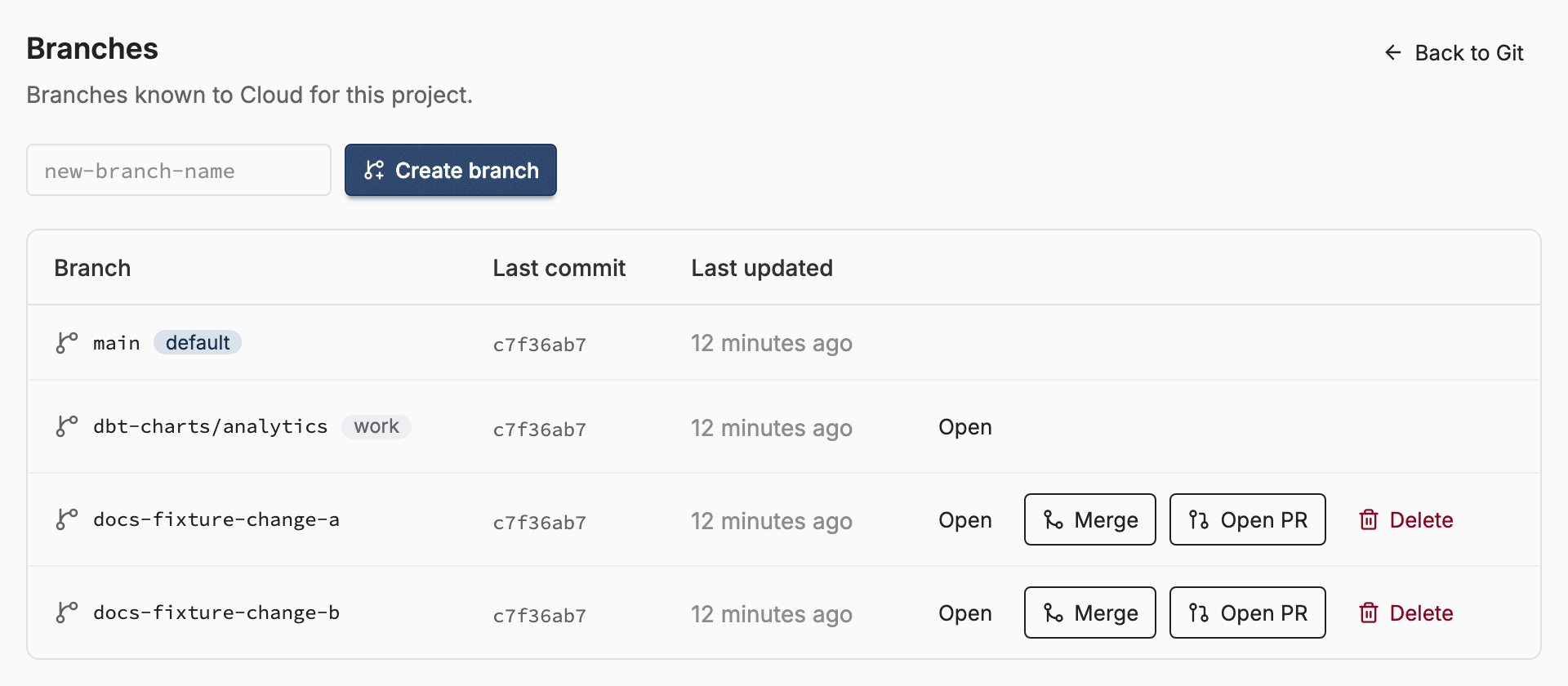
While a change branch is open you can browse and edit any board on it:
board URLs gain a branch scope (/b/<branch>/…), so a link to the
in-progress version is shareable like any other board. When the work is
ready, Merge shows you the changed files and folds the branch back
into the work branch, and if the two branches changed the same lines,
Cloud walks you through a three-version resolution screen instead of
merging blindly. Delete discards the branch. On GitHub, GitLab and
Bitbucket, an org admin can also use Open PR to send a change branch straight to the upstream
branch as a pull request, skipping the work branch, for changes that
should go through your repository's own review instead of Cloud's.
Review mode
By default a project is in direct mode: saves commit straight to the work branch, and change branches merge without a review step. Projects that want an approval step can turn on branch mode, under Review mode in the project's Settings → General:
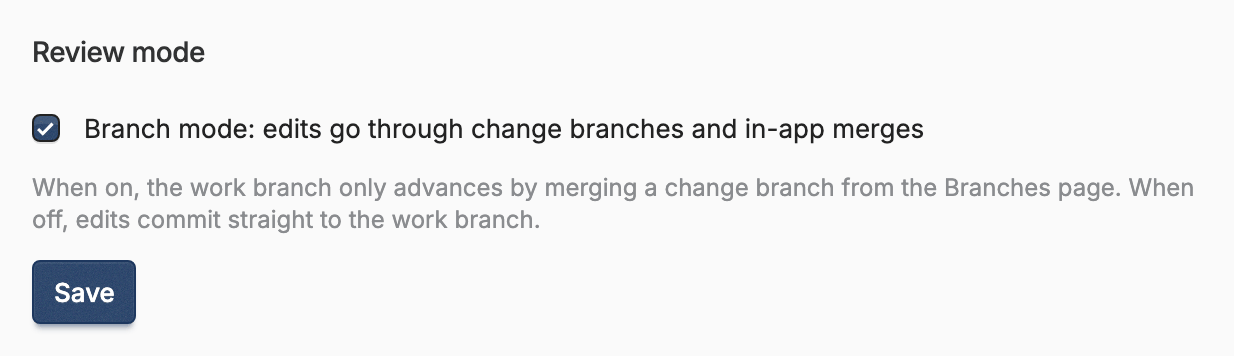
In branch mode the work branch advances only through reviewed merges: every edit happens on a change branch (the Merge button becomes Request merge), and merging one starts with a request. The Branches screen says which mode the project is in, so you can confirm the switch took. The Authors can merge their own changes checkbox beside it is off by default: someone else with merge permission has to approve every review.
Edits you make from a board, a folder page, or the AI assistant collect on one change branch of your own until you propose it. Once that branch is under review, merged, or closed, your next edit starts a new one; a review that requests changes keeps taking them. Renaming or moving a board or folder changes who can see it only when the change merges: until then the work branch keeps the board at its old path with its old access. The moved board on your branch keeps that same access, unless you chose to let it take its new folder's access; sharing changes made at the old path meanwhile reach it when the change merges.
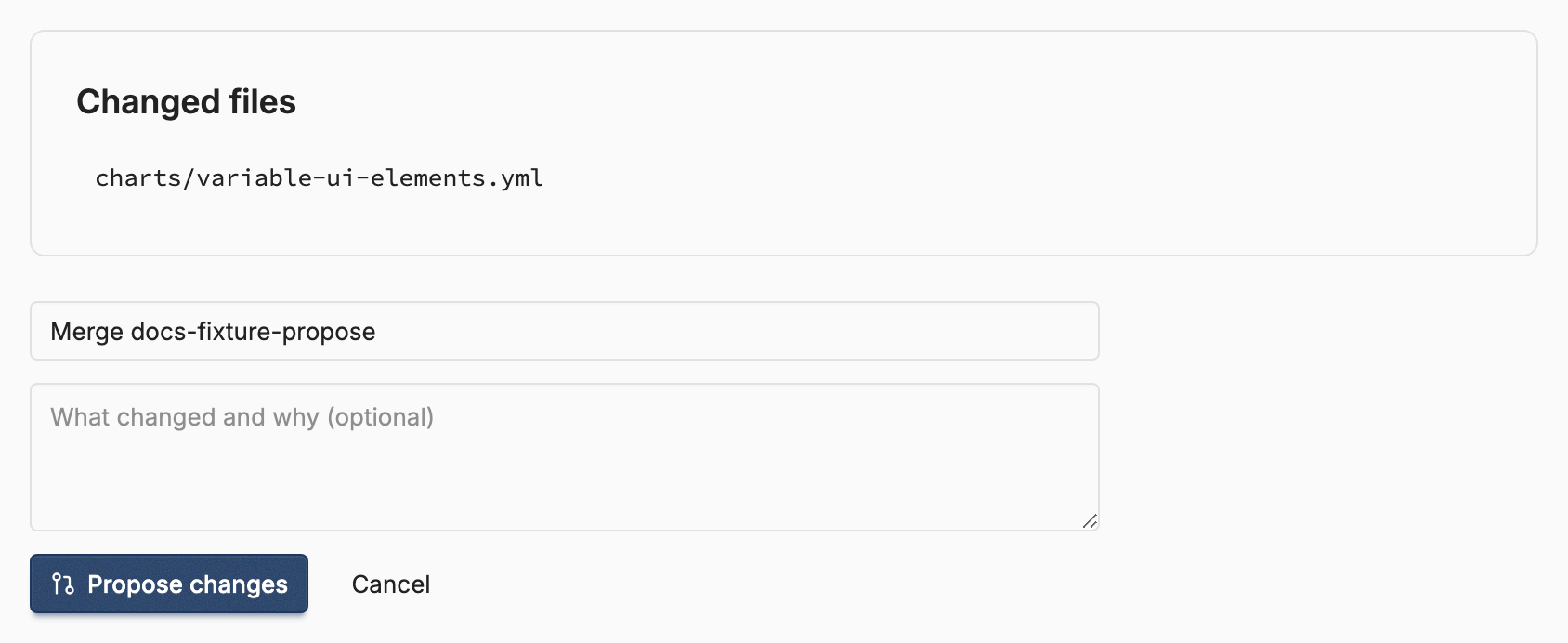
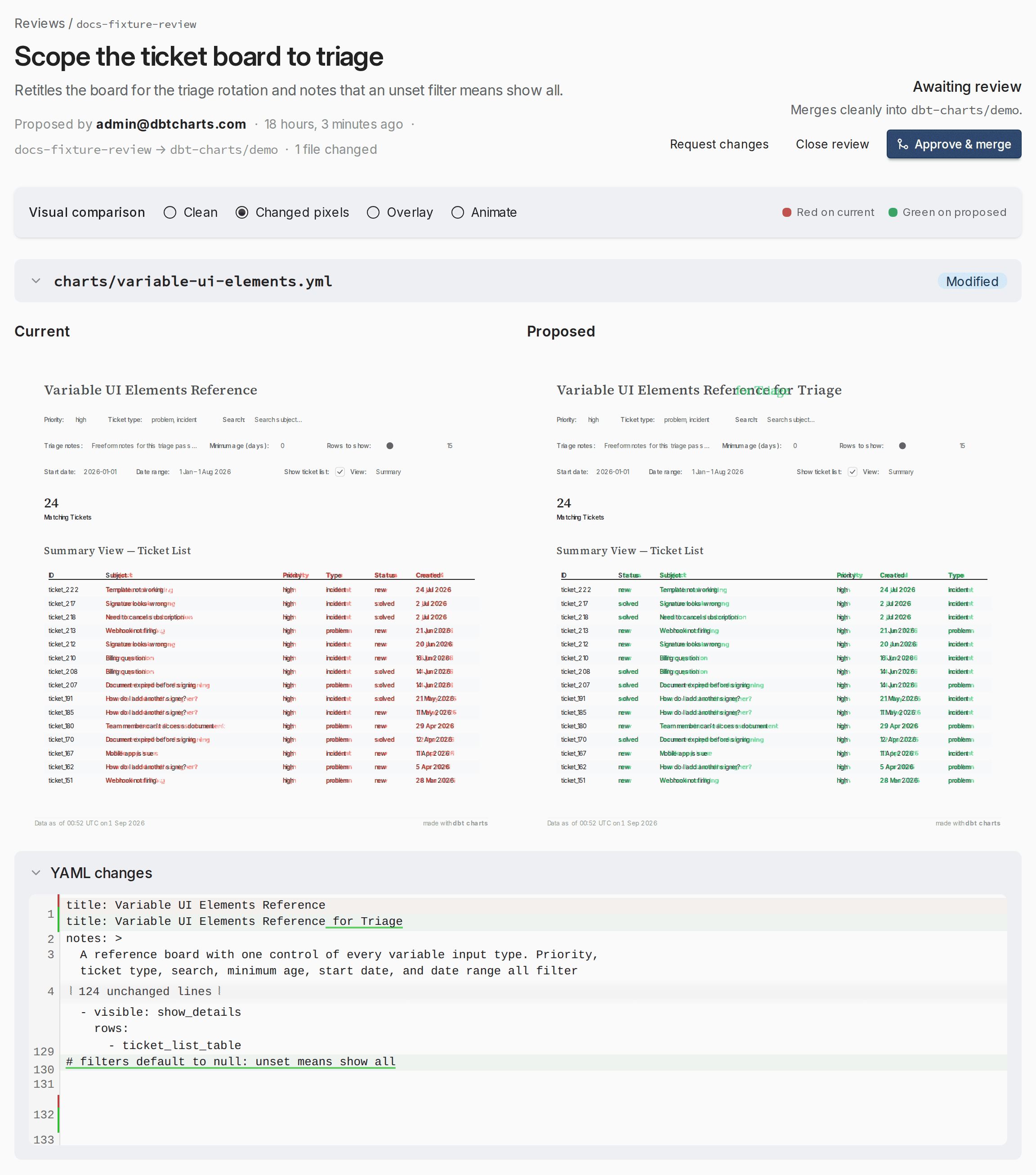
The request page previews the review it opens: every changed board with the current and proposed versions rendered side by side, a visual comparison that can highlight exactly the pixels that changed, and the exact YAML diff. Submitting it opens the review. The author sees it as awaiting review and can withdraw it. A reviewer who holds the Merge reviews permission on every file the review changes (and at project level for files that are not boards) can Approve & merge, Request changes, or close the review; approving merges the branch into the work branch. A member who can edit boards but cannot merge can still request changes. The built-in Admin role carries the merge permission.
Which branch you are on
The branch you are on is yours, not part of the address. Check out a
change branch from the Branches screen, or pick one in the rail's branch
menu, and every page you open (the project home, folders, boards, search and
chat) shows that branch until you go back. A bar above the page names the
branch, counts its changes, and offers Request merge (or View review
once one is open) and Back to the work branch. Your first edit on the
work branch in branch mode starts a change branch and checks you out on it,
and when the branch merges you land back on the work branch. A link with
/b/<branch>/ in it still opens that branch for whoever follows it, without
moving you. Board and folder actions (rename, move, duplicate, delete, new
folder) run on the branch you are on.
Commit history
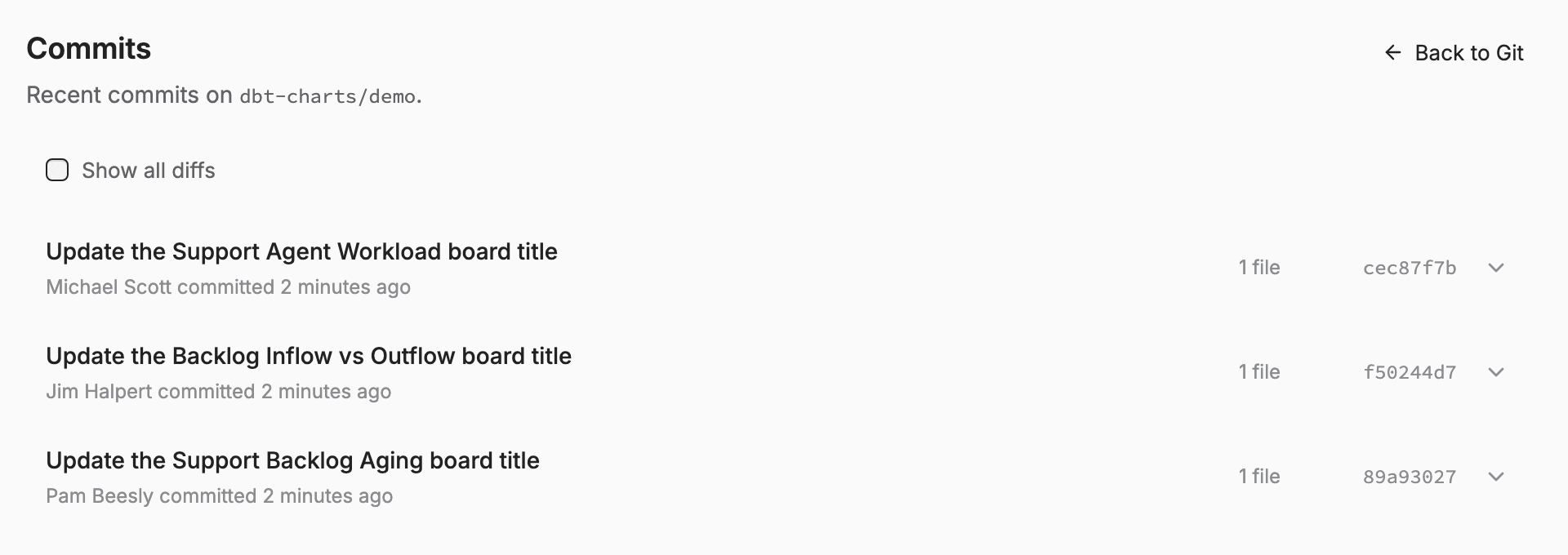
The Commits screen (also linked from the Git settings) lists recent
commits on the work branch: who saved what, when, and the files each
commit touched, with expandable diffs. Because every Cloud edit is a real
commit, this is the full audit trail of how your boards got to their
current state, and it reads the same in Cloud and in git log.
Related
- Getting started: connecting the repository and creating the project.
- Access control: who can edit which boards; edits always commit as the person who made them.
- Refresh: keeping board data current between edits.